Somebody looks at the WAN graph on the second Tuesday of the month and asks the obvious question. We turned on Delivery Optimization. Why does the circuit still flatline every patch cycle?
The answer is almost never "Delivery Optimization is broken". It is usually that peering never happened, the client fell back to HTTP exactly as designed, and nothing anywhere told you. There is no error. There is no event. There is not even a red icon in Settings.
This post is the diagnostic path. Read the device before you touch policy, because most of the interesting evidence is volatile and the first thing everybody reaches for destroys it.
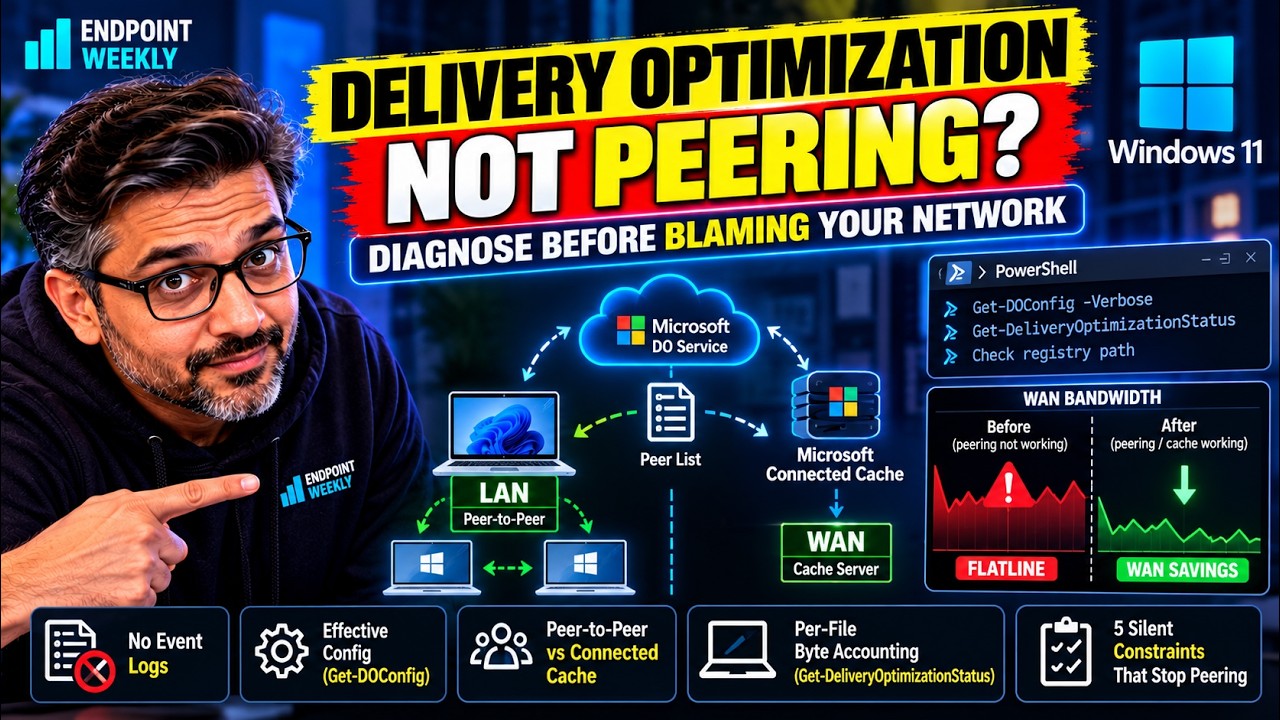
Delivery Optimization does not discover peers by itself. Microsoft documents it as cloud-coordinated: the client registers content identifiers and its private IP with the Delivery Optimization service, and the service hands back a peer list. If download mode is not 1, 2 or 3 there is no peer list at all. If the pieces-hash metadata file cannot be fetched or verified, the download silently downgrades to Simple mode and peering is off for that file. Four cmdlets tell you which of those happened: Get-DOConfig -Verbose for effective configuration and the provider that set it, Get-DeliveryOptimizationStatus for per-file byte accounting, Get-DeliveryOptimizationPerfSnap for the device aggregate, and Get-DeliveryOptimizationPerfSnapThisMonth for the month-to-date WAN-versus-LAN split. On the device measured for this post, peers contributed 0 bytes all month, and yet 4.99 GB of 7.99 GB of HTTP traffic never crossed the internet, because a Connected Cache node served it. Peering and WAN savings are two different questions, and the cmdlets answer them separately.
Companion post: the advanced half of this diagnosis — steps 4 to 8, the log pipeline and the binary versions — is at advanced Delivery Optimization diagnostics. What changed in this post.
Start here: what Delivery Optimization is, in plain English
If you already run Delivery Optimization, skip to the problem. If you have only ever seen the name in a policy list, read this first. Nothing else in the post assumes you did.
When a hundred machines in one office install the same Windows update, the naive outcome is a hundred separate downloads of the same file across your internet link. Delivery Optimization (DO) is the Windows component that tries to avoid that. It is on by default in Windows 10 and 11.
It has two quite different ways of saving your bandwidth, and confusing them is the single most common reason people think DO is broken:
| Source | What it means | Saves WAN bandwidth? |
|---|---|---|
| Peers (peer-to-peer) | Another Windows device, usually on your own network, already has the file and sends you a copy of it directly. | Yes. The bytes never leave your network. |
| Microsoft Connected Cache | A cache server, run by you or by your ISP, that holds Microsoft content closer to you than the public CDN. | Usually yes, depending on where the cache sits. |
Think of a building where everyone orders the same book. Peering is colleagues photocopying each other's copy. Connected Cache is a local depot that stocks the book so the courier does not drive from head office every time. Both cut the long journey. They are separate arrangements, and either can work while the other does nothing.
The catch that this whole post is about: devices do not find each other by shouting on the network. Microsoft's design is cloud-coordinated. A client tells Microsoft's Delivery Optimization service what it is downloading and what its private IP is, and the service hands back a list of peers to try. If the client never gets a usable peer list, it quietly downloads over HTTP instead, exactly as designed. There is no error, and nothing in Settings says so.
How to read the rest of this post
| Level | Read | What you get |
|---|---|---|
| Basic | This section, then The problem and Why it happens | What DO does, why it goes quiet, and the conditions that disqualify peering. |
| Intermediate | How to verify, steps 1 to 3, then The fix | Three commands that tell you what your own device is doing, and which single constraint to change. |
| Advanced | Proof it worked, then the companion post | The numbers to report, then the log pipeline, the binary servicing trains and diagnostic steps 4 to 8. |
The problem: DO reports LAN mode and the WAN link disagrees
The shape of the complaint is always the same. Delivery Optimization is configured. Somebody can prove it, because the policy is deployed and the download mode reads back correctly. And the WAN egress on patch day is indistinguishable from the year before anyone configured it.
What makes this failure unusually annoying is that every surface you would normally interrogate is either silent or lying by omission.
Settings tells you nothing useful. The Activity Monitor page under Windows Update, Advanced Options, Delivery Optimization shows a breakdown by source for the current month. That is a real number, but it is one aggregate for the whole device, it has no per-file detail, and it cannot tell you why a source contributed nothing.
There is no Delivery Optimization log in Event Viewer. Not "there are no recent events" - there is no channel. I enumerated every event log and every registered provider on a Windows 11 25H2 device, build 26200.9168:
Read that carefully, because the distinction matters. Two ETW providers are registered. Zero event log channels exist. Providers emit trace events; channels are what Event Viewer and Get-WinEvent -LogName can actually read. Delivery Optimization has the former and not the latter, so there is nowhere in Event Viewer for those events to land.
This is the structural difference from BITS, which most of us learned to triage first. BITS writes an operational channel you can filter, sort and alert on. Delivery Optimization writes ETW traces into its own service-profile log folder and exposes them only through Get-DeliveryOptimizationLog. On the measured device that folder held 510 .etl files totalling 29.34 MB, named in two families - 502 domgmt.* and 8 dosvc.*. None of it is reachable from the Event Viewer console.
And the cmdlet reference is empty. This is the part that turns a solvable problem into folklore. The Microsoft Learn pages for the Delivery Optimization module cmdlets are published but unpopulated - the description field on Get-DeliveryOptimizationStatus and Get-DeliveryOptimizationPerfSnap both read as unfilled template placeholders. The parameter names are there, and the documented output types (DOSwarmStats, DOFilePeerInfo, DOPeerInfo, DOPerfSnap) are real, but there is no prose telling you what any field means.
The on-box help is no better. I checked:
Eighteen working cmdlets, module version 1.0.3.0, and no documentation on the box or on Learn for the two you most need. The field meanings are documented, just not where Get-Help or the cmdlet reference will take you - they live in the conceptual Monitor Delivery Optimization article. That single misplacement is why so much DO advice on the internet is invented.
Delete-DeliveryOptimizationCache: it clears the cache and, in Microsoft's own words, removes "all persisted data related to them". Every per-file byte count you were about to read goes with it, and the device can no longer upload to peers until it re-downloads. Second, Get-DeliveryOptimizationLog -Flush: the documented behaviour is that -Flush stops DoSvc before reading logs. Running it as your opening move terminates the service whose live state you are trying to inspect. Neither belongs in step one.There is a third reflex worth naming: switching download mode from LAN to Group because "Group is the recommended one". It might well be the right answer. But if you change it before you have measured, you will never know whether the original problem was the mode, the subnet, the file size floor, or a VPN adapter, and you have just committed a fleet-wide policy change on a hunch.
Why it happens: peering is a permission, not a switch
The mental model most people carry is that DO clients find each other. They do not. Microsoft's How Delivery Optimization works article states the principle plainly: the cloud service matches peers, and "Devices don't discover each other directly, except through local peer discovery on Windows 11".
So peering is a three-party negotiation, and any party can quietly decline.
Step one: the client registers, and what it registers decides everything
When a download starts, the client registers with the service and reports content identifiers such as the content URL, a randomly generated device GUID, the device's private IP address and subnet mask, a Group ID string if Group mode is configured and a Group ID is set, a profile bit mask covering platform and SKU and whether the device is a VM, and download attributes such as priority and transfer speeds.
Then the Discovery service points the client at a nearby Array service instance, and the Array service is the component that actually keeps the registry of which devices hold which content and returns the matched peer list. Matching is on three things: ContentID (only devices with the same content are candidates), GroupID (peers must be in the same group), and external IP and geo-location (used to collocate nearby devices).
Which is why a device can be perfectly healthy, on the right subnet, with the right policy, and still get an empty peer list: nobody else on that external IP was downloading that exact content at that time. Peering is a coincidence engine. It needs concurrency.
Step two: the metadata gate, and the silent downgrade
Before any peer transfer, the client fetches a Pieces Hash File. It contains SHA-256 hashes for each piece of the content, pieces are typically 1 MB, it is served from *.dl.delivery.mp.microsoft.com or *.windowsupdate.com, and its own authenticity is verified with a hash obtained over an SSL channel from the DO service.
Here is the sentence that explains a large share of real-world "DO is not peering" tickets:
If the Pieces Hash File cannot be obtained or fails verification, the download falls back to Simple mode - HTTP only, no peer-to-peer. Microsoft describes this as a security safeguard: without verified metadata, content from peers cannot be trusted.
Read that against a corporate proxy or TLS-inspection deployment. Block or mangle the metadata hosts and every download still succeeds, on time, from the CDN - with peering silently disabled per file. Your download mode still reads 1. Your policy is still correct. And your peer bytes are zero forever. This is the single most common way DO "works" and saves nothing.
The same article is blunt about the fallback in general: "CDN fallback always available - Peer-to-peer is an optimization layer." DO is a reliable HTTP downloader first. Peering is the optional part, and the design intent is that it fails soft.
Step three: the download mode decides the size of the room
Download mode is the coarsest control, and its values are documented in both the Delivery Optimization reference and Policy CSP - DeliveryOptimization.
| Download mode | Peer group scope (documented) | What it means for your diagnosis |
|---|---|---|
0 HTTP Only | No peer-to-peer. The DO cloud service is still used for metadata. | Peer bytes will be zero and that is correct. Stop looking for a peering bug. |
1 LAN (client default) | Devices that share the same public IP address, behind the same NAT. | On Windows 11 the LAN default also restricts peers to the local subnet. See the callout below. |
2 Group | Devices that share the same GroupID. Can span NAT boundaries using Teredo. | The only mode in which DOGroupId and DOGroupIdSource do anything at all. |
3 Internet | All peers, including internet peers. Uses Teredo for NAT traversal. | Rarely what an enterprise wants, but it is a peering mode, so peer bytes are possible. |
99 Simple | No peer-to-peer and no DO cloud service contact. For air-gapped environments. | Also the mode DO switches to automatically when the cloud services are unreachable. A 99 you did not configure is a connectivity finding. |
100 Bypass | Deprecated in Windows 11. The download bypasses DO and uses BITS instead. | Microsoft says do not configure it, and warns it "can cause some content to fail to download". |
DODownloadMode with Default Value 0. The DO reference says "Default is configured to LAN(1)". The overview says that in Windows client Enterprise, Professional and Education editions, DO "is enabled by default for peer-to-peer sharing on the local network (NAT)". They are describing different things - the CSP's unset representation versus the client platform's operating default - but nothing on the CSP page says so. Do not read 0 off the CSP table and conclude peering is off by default on Windows clients. Read the device instead.Step four: five more constraints that disqualify peering without saying so
These are the ones that make a correctly configured fleet peer nothing. Every value below is from the DO reference.
- Peer selection restriction.
DORestrictPeerSelectionBytakes 0 (None), 1 (Subnet mask - restricts discovery to devices in the same subnet) or 2 (Local Peer Discovery via DNS-SD/mDNS). Microsoft states that selecting either 1 or 2 "prevents peer discovery across subnets". And separately: on Windows 11, "Default behavior for LAN (Download Mode 1) restricts peers to the local subnet." So a Windows 11 fleet in LAN mode is already subnet-scoped before you configure anything - which is a much smaller room than "same NAT" implies, and on a Wi-Fi estate with per-floor subnets or client isolation it can be a room of one. - Group identity.
DOGroupIdSourcetakes 0 Not set, 1 AD Site, 2 Authenticated domain SID, 3 DHCP Option ID (the client queries DHCP Option ID 234 and uses the returned GUID), 4 DNS Suffix, 5 Entra tenant ID. When neitherDOGroupIdnorDOGroupIdSourceis set, the group is determined using AD Site (1), then Authenticated domain SID (2), then Entra tenant ID (5), in that order. Critically: "The option configured in this policy only applies to Group (2) download mode. If Group (2) isn't configured as the Download Mode, this policy is ignored." A carefully designed GroupID scheme on a LAN-mode fleet is dead configuration. - VPN.
DOAllowVPNPeerCachingdefaults to not allowed: "By default, if a VPN connection is detected, peering isn't allowed, except when the 'Local Discovery' (DNS-SD) option is chosen." Detection is string matching - DO inspects the network adapter'sDescriptionandFriendlyNameagainst a default keyword list of "VPN", "Secure" and "Virtual Private Network", and the docs give "MSFTVPN matches the VPN keyword" as the example. Any adapter whose name happens to contain the word "Secure" will be treated as a VPN. - Minimum file size.
DOMinFileSizeToCachespecifies the minimum content file size in MB eligible for peer caching, and "The default file size is 50 MB to participate in peering." Everything smaller is invisible to peering. Microsoft's own sizing guidance: above 30 devices drop it to 10 MB, above 100 devices go to 1 MB, because "Content peering has a limited number of slots available at any given time." - Machine resources.
DOMinRAMAllowedToPeerdefault 4 GB,DOMinDiskSizeAllowedToPeerdefault 32 GB total disk capacity, andDOMinBatteryPercentageAllowedToUpload- "By default, devices won't upload while on battery." Note the asymmetry, which the docs state explicitly: "The device can download from peers while on battery regardless of this policy." A laptop fleet that is never docked will happily consume peer bytes and never contribute any.
Then there is eligibility. Not every payload is allowed to peer at all, regardless of policy. From the What is Delivery Optimization content table: Windows Update, UWP Store apps, Defender definition updates, Intune Win32 apps, Microsoft 365 apps and updates, Edge updates, Configuration Manager Express updates and Dynamic updates all support peer-to-peer. Windows 11 Win32 Store apps, the MDM Agent, Xbox Game Pass for PC, Windows Package Manager and the MSIX Installer are HTTP-downloader only - no peer-to-peer column tick at all. Microsoft 365 peering excludes the SAC Extended channel, and Teams peering only arrives at version 25122.1415.3698.6812.
How to verify: three read-only commands, in order
Everything below is read-only. Nothing here restarts a service, clears a cache, or writes policy. Run it in an elevated PowerShell session - Get-DeliveryOptimizationLog explicitly requires administrator permissions when no path is given, and the status cmdlets are documented as being run from an elevated window.
The order matters. Each step either produces a root cause or eliminates a branch.
Read effective configuration and its source. This is the single highest-value command in the whole exercise, and it has a trap in it.
Three things to take from that block.
The provider suffix is the point. Every setting is paired with a ...Provider field, and Microsoft documents the behaviour: "Each policy is listed with the current set value and the provider of that policy", and "The provider is listed as 'Default Provider' if it's using the Delivery Optimization platform configured default." So DownloadModeProvider : MdmProvider is proof that LAN mode came from MDM, while WorkingDirectoryProvider : DefaultProvider is proof that nobody has moved the cache. This is how you settle the "is that setting actually applying?" argument without guessing.
The units cross-check works. Policy on this device sets DOMaxBackgroundDownloadBandwidth = 1000, and the policy is documented in kilobytes per second. Get-DOConfig reports DownBackLimitBps = 1024000. That is exactly 1000 x 1024, so the cmdlet is reporting the same setting in bytes per second. If those two numbers do not line up on your device, the policy you think you deployed is not the policy in force.
-Verbose is not cosmetic on this cmdlet, it changes the schema. I measured it: plain Get-DOConfig returns a DOConfig object with 14 properties - the bandwidth and download-mode subset only. (Get-DOConfig).WorkingDirectory returns an empty string. Add -Verbose and WorkingDirectory, MinTotalDiskSize, MinTotalRAM, VpnPeerCachingAllowed, VpnKeywords, BatteryPctToSeed and the business-hours ranges all appear. Every peering prerequisite lives in the fields -Verbose adds. A script that omits it silently reports nothing about peering eligibility - and reports it as blank, not as an error.And two documented defaults do not match the device. The reference says DOMonthlyUploadDataCap defaults to 20 GB; Get-DOConfig reports UploadLimitMonthlyGB : 5120 attributed to DefaultProvider, and the policy is not set on this device. Similarly the monitor article says Get-DOPercentageMaxBackgroundBandwidth has a default of 45 and the foreground equivalent a default of 90, while the policy reference says both percentage policies default to 0 meaning dynamic adjustment. I am reporting the discrepancy rather than resolving it: trust the cmdlet for what the device is doing, and treat published defaults as a starting hypothesis.
Find out where the policy physically lives - because the answer determines whether your audit script can see it at all.
The parent key for a Group Policy or local-policy DO deployment, as documented for every ADMX-backed setting in the Policy CSP:
On the measured device that key does not exist. Test-Path returns False. The device is MDM-managed, so the settings landed somewhere else entirely:
HKLM\SOFTWARE\Policies\Microsoft\Windows\DeliveryOptimization reports this fully configured device as unconfigured. That is the classic false negative in fleet compliance reporting for any MDM-managed setting: the ADMX-backed Group Policy path documented in the CSP is where GPO writes, not where MDM writes. Check both hives, or check neither and use Get-DOConfig -Verbose, which reads effective configuration regardless of origin.Three things in that key deserve a table of their own, because the naming is not obvious and the suffixes carry real information.
| Value | Meaning | What to look for |
|---|---|---|
DODownloadMode | The download mode in force, as an integer, matching the documented 0/1/2/3/99/100 set. | Anything other than 1, 2 or 3 means peering is off by design. A 99 nobody configured points at DO cloud service reachability, not at peering. |
DORestrictPeerSelectionBy | 0 None, 1 Subnet mask, 2 Local discovery (DNS-SD). | A 1 here plus Windows 11's subnet-scoped LAN default is a double narrowing. On a segmented Wi-Fi estate this is the most common reason NumPeers is 0. |
DOMinFileSizeToCache | Minimum content file size in MB eligible for peering. Absent means the 50 MB documented default applies. | Compare it against the FileSize values you are actually seeing in Get-DeliveryOptimizationStatus. Anything below the floor will never peer and is not a fault. |
DOAllowVPNPeerCaching | 0 Not allowed (default), 1 Allowed. | A 0 combined with any adapter matching VPN, Secure or Virtual Private Network switches peering off for the whole session. |
DOGroupId / DOGroupIdSource | Custom group GUID, and the source used to derive one (0-5). | Both are ignored entirely unless DODownloadMode is 2. Present-but-ignored group config is a very common misconfiguration. |
<setting>_ProviderSet | Companion flag written alongside each policy value under PolicyManager. | Confirms the value arrived through a management provider rather than being a stray manual write. |
<setting>_WinningProvider | The GUID of the provider that won the conflict resolution. On this device every DO value resolved to CFC160FB-1616-460F-9B6C-DCDB91DFEC83. | All values sharing one GUID means one management authority. Mixed GUIDs across DO settings means two authorities are fighting, and that is worth finding before you change anything. |
Read the per-file byte accounting. This is where the diagnosis actually happens, because it is the only place that shows you source attribution file by file.
A naive reading of that block is "DO failed, zero percent peering". A correct reading is considerably more interesting, and it turns on one documented sentence about one field.
| Field | Documented meaning | How to read it |
|---|---|---|
PercentPeerCaching | "The percentage of bytes downloaded from peers versus over HTTP". | The headline number, and the one everyone reports. It answers "did peering happen", not "did we save WAN bandwidth". |
BytesFromHttp | "Total number of bytes received over HTTP. This metric represents all HTTP sources, which includes BytesFromCacheServer." | The most misread field in the set. HTTP here is not a synonym for internet. A Connected Cache hit is counted as HTTP. |
BytesFromCacheServer | "Total number of bytes received from cache server (Connected Cache)." | Subtract this from BytesFromHttp to get true CDN bytes. In the block above that is 114,816,432 minus 9,502,720 - so about 9.5 MB of a 114.8 MB file came from a cache node. |
BytesFromLanPeers / GroupPeers / InternetPeers / LinkLocalPeers | Bytes received from peers found on the LAN, in the group, on the internet, and via link-local discovery. Group mode is LAN plus Group, so LAN-found peers register under BytesFromLanPeers. | This is where you learn which kind of peering worked. Note that BytesFromLinkLocalPeers and BytesToLinkLocalPeers are present on the device but absent from the published field table. |
NumPeers | "Indicates the total number of peers returned from the service." | The cleanest single discriminator. 0 means the cloud service had nobody to offer - a matching problem. Non-zero with zero peer bytes means a connectivity problem between the peers. |
DownloadMode | The DO download mode value for this file. | Per-file, not per-device. A single file reading Simple on a LAN-mode device is the metadata-verification downgrade described earlier. |
Status | Downloading, Complete (download finished but not yet uploading), Caching (finished and ready to upload or uploading), Paused. | Complete is not the end state you want for a good peer. Caching is - that is the file being made available to others. |
HttpConnectionCount, LanConnectionCount and friends | Number of connections to each source type. | These are live counts, not cumulative. All zero on a finished download is normal and means nothing is currently connected. Do not read them as history. |
PredefinedCallerApplication | "Indicates the last caller that initiated a request for the file." | Tells you which product asked for the payload - WU Client Download above. Use it to separate Windows Update traffic from Store, Office and Edge traffic in the same list. |
FileSizeInCache | Size of the file in the cache. | Lower than FileSize means the cache has been partially trimmed. A file at less than full size is a weaker upload source. |
Get-DeliveryOptimizationStatus | Select FileId, FileSize, PercentPeerCaching, BytesFromCacheServer, NumPeers, Status, PredefinedCallerApplication | Sort FileSize -Descending shows you the payloads big enough to matter. And Get-DeliveryOptimizationStatus -PeerInfo gives a real-time list of potential peers per file with IP, PeerType (LAN, Group, Internet or LinkLocal), ConnectionEstablished, BytesSent, BytesReceived and 20-second rolling rates. On the measured device it returned no objects at all - which is itself the answer, and consistent with NumPeers : 0 on every file.The fix: change one constraint, and know which one
By this point the diagnosis should name a single constraint. Fix that one. Resist the urge to deploy five settings at once, because with no event channel and only aggregate counters you will have no way to attribute the improvement.
Map your finding to the change:
| What you measured | What to change | Documented detail that matters |
|---|---|---|
DownloadMode is 0 or 99, and you did not configure 99 | Reachability first, mode second | Microsoft: if the mode is 99, "it could indicate your device is unable to reach the Delivery Optimization cloud services". Allow *.do.dsp.mp.microsoft.com - described as most important - plus *.dl.delivery.mp.microsoft.com and *.windowsupdate.com for metadata. Do not set a mode to paper over a blocked hostname. |
NumPeers is 0, mode is 1, devices are on different public IPs | DODownloadMode to 2 plus a custom DOGroupId GUID | This is Microsoft's own recommended step, and Group mode "is the recommended option for most organizations looking to achieve the best bandwidth optimization". Generate the GUID with [guid]::NewGuid(). Group peering across NATs uses Teredo on UDP 3544, so open it. |
NumPeers is 0 and DORestrictPeerSelectionBy is 1 | Reconsider the subnet restriction, or move to Group mode | Subnet mask (1) and Local Peer Discovery (2) both "prevent peer discovery across subnets". On Windows 11 LAN mode is already subnet-scoped by default, so an explicit 1 is often redundant narrowing rather than deliberate policy. |
| Peering stops whenever users are remote | DOAllowVPNPeerCaching, or DORestrictPeerSelectionBy = 2 | Setting VPN peer caching to allowed lets the device peer with domain-network devices on VPN or on the corporate network. Alternatively Local Peer Discovery via DNS-SD "works even when a VPN connection is active" and does not use the DO cloud service for peer resolution. Add site-specific names with DOVpnKeywords if your VPN adapter does not match the default list. |
| Your real payloads are below the size floor | DOMinFileSizeToCache | Default 50 MB. Microsoft: above 30 devices use 10 MB, above 100 devices go to 1 MB. Recommended range is 1 to 100000. On the measured device this is already at 10. |
| Laptops consume peer bytes but never contribute | DOMinBatteryPercentageAllowedToUpload | Devices will not upload on battery by default. Microsoft's recommended value if you allow it is 40, and the configure article suggests 60 for a mobile-heavy estate. Uploads pause automatically below the configured level. |
| Peers exist but HTTP wins the race every time | DODelayBackgroundDownloadFromHttp and the foreground twin | Microsoft's starting point is 60 seconds for background and 30 for foreground. On the measured device both are 60, so foreground is more patient than the guidance suggests. Also consider DOMinBackgroundQoS, documented at a 20 MB/s default, with the advice to set it below your network's average download speed - the example given is 500 KB/s on a 1000 KB/s network. |
| Peer bytes are zero and the payload is not peerable | Connected Cache, not P2P | Win32 Store apps, MDM Agent, Package Manager, MSIX Installer and Xbox Game Pass are HTTP-downloader only. No peering setting will change that. DOCacheHost or DOCacheHostSource is the lever. |
Things not to do
Do not use Set-DODownloadMode as the fix. It exists, it accepts CdnOnly, Lan and Internet, and it requires elevation. But Microsoft is explicit: changes made with the Set-DO* cmdlets "may be overridden by Group Policy or MDM policy on the next policy refresh". These are diagnostic and temporary-adjustment tools. Use them to prove a hypothesis on one device in ten seconds; never as the remediation.
Do not configure download mode 100. Deprecated in Windows 11, and Microsoft warns it "can cause some content to fail to download". If you want no peering, use 0. If the device has no internet access, use 99.
Do not clear the cache to "reset" DO. A device with a populated cache is an upload source for the rest of the fleet - the measured device had UploadCount : 36, thirty-six files currently eligible to serve peers. Delete-DeliveryOptimizationCache throws that away and removes the byte-level evidence with it. If the goal is disk space, DOMaxCacheSize, DOAbsoluteMaxCacheSize and DOMaxCacheAge are the settings that do it without destroying the fleet's seed capacity.
Do not raise the bandwidth cap as a first response to a saturated link. That is the opposite lever. On the measured device the caps are doing exactly what they were asked to: DOMaxBackgroundDownloadBandwidth = 1000 KB/s, reported by Get-DOConfig as DownBackLimitBps = 1024000, with a business-hours range of 08:00 to 17:00 at 25% both in and out of hours. A saturated WAN link with those caps in force is not a DO throttling problem - it is a lot of devices each staying politely inside a 1 MB/s ceiling.
Computer Configuration\Administrative Templates\Windows Components\Delivery Optimization and lands under the SOFTWARE\Policies\Microsoft\Windows\DeliveryOptimization key documented for every ADMX-backed DO setting. MDM writes to .Vendor/MSFT/Policy/Config/DeliveryOptimization/ and lands under PolicyManager. Pick one authority per setting. Mixed _WinningProvider GUIDs across your DO values is a configuration smell, not a curiosity.Proof it worked: the four numbers that have to move
Because there is no event to watch, verification is a before-and-after measurement. Take the baseline before you change anything - the whole of step 1 to step 6 above, saved to a file - then re-measure after a real patch cycle rather than after a policy refresh. Peering needs concurrency, so nothing will change until two devices actually want the same payload at the same time.
The four numbers, in order of how convincing they are:
NumberOfPeersfromGet-DeliveryOptimizationPerfSnap. Microsoft's own troubleshooting procedure makes this the pass/fail: download the same app on two devices on the same network, wait 10 to 15 minutes between them, confirm download mode is 1 or 2 on both, then check thatNumberOfPeerson the second device "should be nonzero". Zero here and the cloud service is not matching you, so nothing downstream can work.BytesFromLanPeerson individual files fromGet-DeliveryOptimizationStatus. Peers being offered is not peers delivering. This is the field that proves bytes actually crossed the LAN, and it distinguishes a matching success from a transfer success.DownloadLanBytesfromGet-DeliveryOptimizationPerfSnapThisMonth. The fleet-level number to report upward, because it is month-scoped and needs no interpretation. Pair it withDownloadHttpBytesandDownloadCacheHostBytesso the audience can see all three sources at once.ConnectionEstablishedfromGet-DeliveryOptimizationStatus -PeerInfo. The forensic one. Per-peer, real time, withIP,PeerType,BytesSent,BytesReceivedand 20-second rolling upload and download rates. If peers are offered but everyConnectionEstablishedis False, you have a reachability problem on 7680 between the peers, not a matching problem - and that is a completely different fix.
What does success actually look like? A real, measured example from a sibling capture on this estate: PercentPeerCaching : 33.68 on a 2.79 GB Microsoft 365 payload. One third of a nearly three-gigabyte download sourced from peers on one device. That is what a working peer group produces on eligible content, and it is a useful sanity anchor - if your best file after a fix is still at 0.4%, the constraint you changed was not the binding one.
For scale context, Microsoft's own internal deployment used Group mode restricted to devices in the same Active Directory domain with content cached for 24 hours, and reports that "More than 76 percent of content came from peer devices versus the Internet". Treat 76% as the ceiling of what a well-tuned Group-mode estate achieves, not as a target for month one.
Here is the honest before-and-after frame for the device in this post, so you can see what an unfinished investigation looks like written down:
| Measure | Baseline (measured, month to date) | What would count as improvement |
|---|---|---|
NumberOfPeers | 0 | Any non-zero value during an active patch window. This is the gate; nothing else can improve while it is 0. |
PercentPeerCaching, best file | 0 across all 49 cached files | Double digits on at least one payload above the DOMinFileSizeToCache floor. The 33.68% sibling measurement shows what is achievable. |
DownloadLanBytes | 0 bytes | Any non-zero figure. This is the one number that means WAN egress was displaced by LAN traffic. |
DownloadCacheHostBytes as a share of DownloadHttpBytes | 5,352,964,220 of 8,574,044,045 - about 62% | Hold or improve. This is already working and a peering change must not regress it. |
UploadCount | 36 files eligible to upload | Stays high. A device that stops being a seed makes the whole estate worse, which is exactly what a cache clear does. |
Files that found peers (Get-DeliveryOptimizationLogAnalysis) | Not yet captured | The efficiency numbers from log analysis are the closest thing to a single score. Capture them alongside the counters so you have a trend, not a snapshot. |
Two closing cautions on measurement itself.
First, connection counts are instantaneous. LanConnectionCount, HttpConnectionCount, CacheHostConnections, CdnConnections and their siblings were all zero on the measured device precisely because nothing was downloading at that moment. Sampling them on an idle machine produces a confident, meaningless zero. Capture during a download or do not capture them at all.
Second, the same cmdlet can disagree with itself across scopes, and that is not a bug you need to chase. Get-DOConfig reported MaxUploadRatePct : 50 from DefaultProvider while Get-DeliveryOptimizationPerfSnap reported UploadRatePct : 100. One is a configured ceiling; the other is a currently applied rate. Record both, label them clearly, and do not average them into a single "upload rate" field on a dashboard.
Get-DOConfig -Verbose, Get-DeliveryOptimizationStatus, Get-DeliveryOptimizationPerfSnap, Get-DeliveryOptimizationPerfSnapThisMonth, the PolicyManager and Policies registry keys, the 7680 listener, and the RAM and disk figures. Nine reads, no writes, no service restarts. Collect it on a schedule from a sample of devices per site and you have the DO monitoring that Event Viewer cannot give you - and you will spot the site where NumberOfPeers is structurally zero long before anyone looks at a WAN graph and blames the network.About this update
References
Companion post: Advanced Delivery Optimization diagnostics: the log pipeline, the binaries and steps 4 to 8 — for when the three commands here say peering should be working and it still is not.
- Monitor Delivery Optimization - the only place the cmdlet output fields are actually documented: the full
Get-DeliveryOptimizationStatusandGet-DeliveryOptimizationPerfSnapfield tables, the-PeerInfofields, theGet-DOConfig -Verbosefield list with the provider-attribution behaviour, and theGet-DeliveryOptimizationLogAnalysisoutput list. - How Delivery Optimization works - cloud-coordinated peer matching, the client registration payload, ContentID/GroupID/external IP matching, Discovery and Array services, the Pieces Hash File and the documented fall back to Simple mode, the per-download-mode peer group scope table, port requirements, NAT traversal, and the default cache location and limits.
- Delivery Optimization reference - every setting with its MDM name, units and default: download modes 0 to 100,
DOGroupIdSourcevalues 0 to 5,DORestrictPeerSelectionBy, the Windows 10 versus Windows 11 peer-selection difference,DOMinFileSizeToCache,DOMinRAMAllowedToPeer,DOMinDiskSizeAllowedToPeer,DOAllowVPNPeerCaching,DOVpnKeywordsand the delay policies. - Troubleshoot Delivery Optimization - the "if you don't see any bytes from peers" decision tree, the two-device test with the 10 to 15 minute gap, the
NumberOfPeerscheck, the same-public-IP test, the port 7680Test-NetConnectionprocedure, and the four restrictive settings to audit. - Configure Delivery Optimization for Windows - firewall hostnames, the full port table including Teredo on 3544, peer group design by topology, the file-size guidance by fleet size, the delay-policy starting values, and the non-additive cache-server fallback warning.
- Policy CSP - DeliveryOptimization - OMA-URIs, formats, allowed ranges, and the Group Policy mapping for every setting, including the
SOFTWARE\Policies\Microsoft\Windows\DeliveryOptimizationregistry key name andDeliveryOptimization.admx. - What is Delivery Optimization? - the content-type eligibility table showing which payloads support peer-to-peer at all, the minimum Windows versions, the client-default statement about NAT, and the Microsoft-internal 76 percent figure.
- Microsoft Connected Cache overview - the two offerings, and the distinction between the Enterprise and Education product configured by client policy and the ISP product routed by CIDR or BGP.
- Get-DeliveryOptimizationStatus (cmdlet reference) - the
-AsObject,-PeerInfoand-SelectPeerCountparameters (default 5) and the output typesDOSwarmStats,DOFilePeerInfoandDOPeerInfo. The description fields on this page are unpopulated, which is why the conceptual monitor article above is the real reference. - Get-DeliveryOptimizationPerfSnap (cmdlet reference) - output type
DOPerfSnap. Also an unpopulated stub at the time of writing. - Test-NetConnection - the documented alternative to Telnet for the peer-to-peer port 7680 reachability test.
- Delivery Optimization Troubleshooter - the Microsoft diagnostic with
-HealthCheck,-P2P,-MCC,-GenerateSupportBundleand-AsObjects.
Every command output shown in this post was captured read-only from a live Windows 11 Enterprise 25H2 device, build 26200.9168, on 23 August 2026. Nothing in the diagnostic path writes to the device, restarts a service, or clears a cache. Validate against your own estate before acting on any of it.